
That old laptop in the closet or retired office server in the storage room may look harmless, but the drive inside can still hold tax records, passwords, client files, payroll data, and years of personal information. A good hard drive destruction guide starts with one simple fact: deleting files or formatting a drive is not the same as making data disappear.
For households, the risk is identity theft and privacy loss. For businesses, it can mean exposed customer records, internal documents, and compliance headaches. The right approach depends on the type of drive, the condition of the device, and whether you still need the equipment to be reusable.
What this hard drive destruction guide is really about
People often use the word “destroy” to mean any kind of data removal. In practice, there are two different paths. One is data wiping, where software overwrites a working drive so the device can potentially be reused or resold. The other is physical destruction, where the drive is damaged beyond practical recovery.
Both methods have a place. If a desktop computer is still functional and you want to retire it responsibly while preserving some asset value, secure wiping may be the better choice. If a drive is failed, inaccessible, highly sensitive, or simply not worth keeping intact, physical destruction is usually the safer route.
That distinction matters because many disposal mistakes happen in the gray area between convenience and security. Someone drags files to the recycle bin, resets a PC, or removes a drive and assumes that is enough. It often is not.
When wiping is enough and when destruction makes more sense
A working hard disk drive can often be securely wiped if it is healthy enough to complete the process. In business settings, this is common for fleets of office PCs, laptops, and servers being decommissioned in an organized way. A documented overwrite process gives you a clear record of what happened to the data while allowing the device to continue through an approved reuse or recycling path.
Physical destruction becomes the better option when the drive cannot be read consistently, when the hardware is damaged, or when the contents are especially sensitive. Think finance files, legal records, HR documents, customer databases, or any drive that has been sitting in unknown hands for too long. In these cases, the question is not whether the drive still powers on. The question is whether you want to take any chance at all.
For home users, the choice often comes down to practicality. If you have one old family computer and the drive still works, secure wiping may be enough. If the machine is dead, the password is long forgotten, or the drive came from a pile of mixed old electronics, destruction is usually the cleaner answer.
HDDs and SSDs do not behave the same way
This is where many disposal guides oversimplify things. Traditional hard disk drives, or HDDs, store data on magnetic platters. Solid-state drives, or SSDs, store data on memory chips. Because they work differently, data removal works differently too.
With HDDs, a proper overwrite process is generally reliable when the drive is functioning normally. Physical destruction of the platters is also a strong end-of-life option.
With SSDs, things are less straightforward. Wear leveling and controller behavior can make software-based overwriting less predictable than many people expect. A factory reset or quick format is especially weak. If the SSD contains sensitive data and you do not need to reuse it, physical destruction is often the safer choice.
That is why any practical disposal plan should identify drive type before deciding on a method. A blanket rule for every storage device sounds simple, but it can create false confidence.
Methods that work and methods that only feel secure
A secure process usually falls into one of three categories: verified software wiping, degaussing for certain magnetic media, or physical destruction.
Software wiping is best for working drives that are staying intact. In professional settings, this should be done with a recognized process and a record of completion. A multi-pass method may still be requested by some organizations for policy reasons, although the right standard depends on your environment and the drive involved.
Degaussing uses a strong magnetic field to disrupt data on magnetic drives. It is not suitable for SSDs, and it can make a drive permanently unusable. It is effective in the right context, but it is usually part of an industrial or managed disposal workflow rather than something a household should attempt.
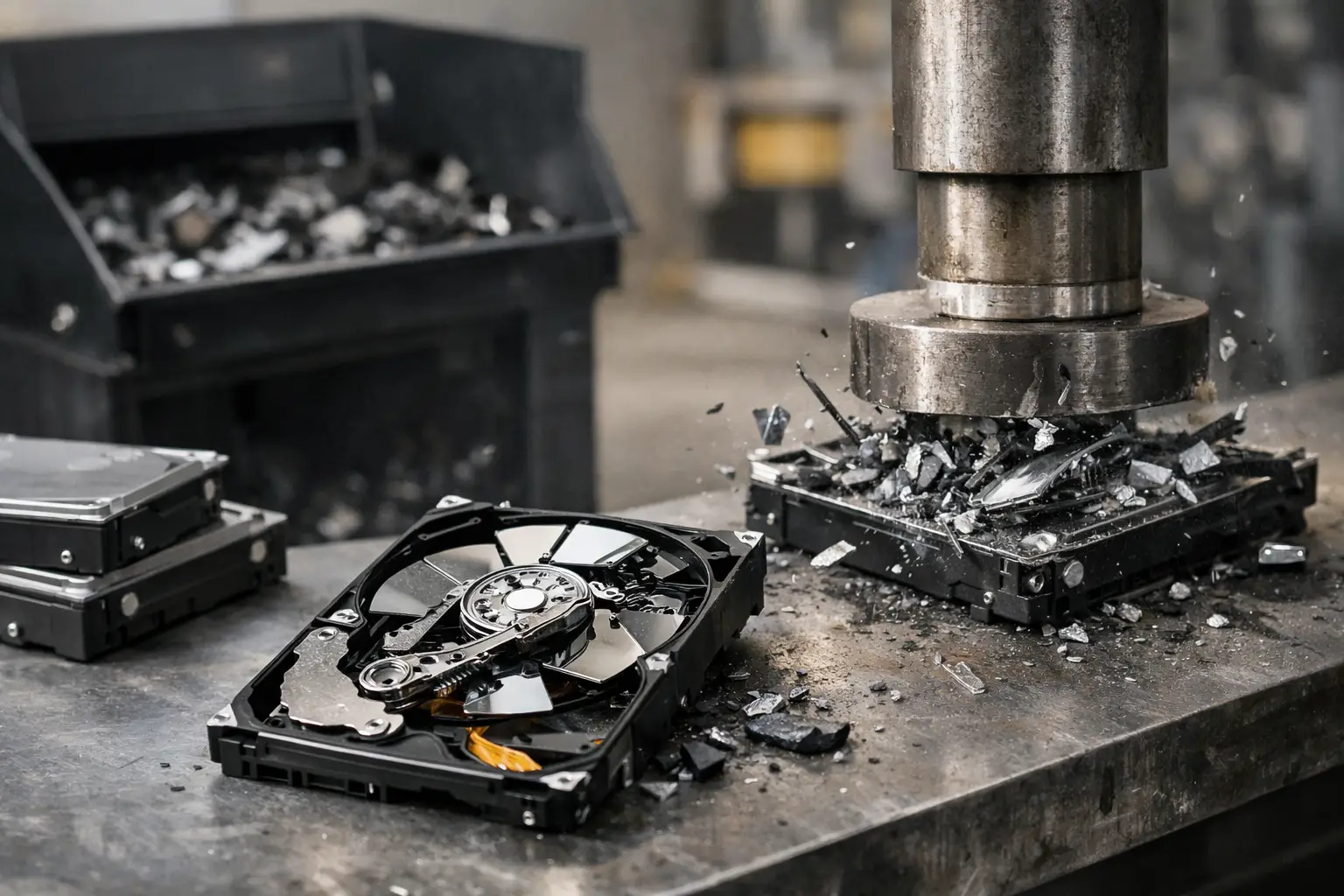
Physical destruction includes shredding, crushing, drilling, or dismantling a drive and damaging the storage components. Not all of these methods are equally reliable. A casual hammer strike may dent the casing without fully compromising the platters or memory chips. Drilling can be effective if done correctly, but it still requires care, safety equipment, and proper handling of e-waste afterward. For larger volumes or business equipment, a controlled service process is usually the safer and more accountable route.
What does not work well? Deleting files, quick formatting, factory resets without verification, or storing old drives “for later” in a drawer. Those are delay tactics, not disposal strategies.
How to prepare drives before disposal
Before any wiping or destruction starts, take a moment to control the process. This is especially important for offices clearing multiple devices at once.
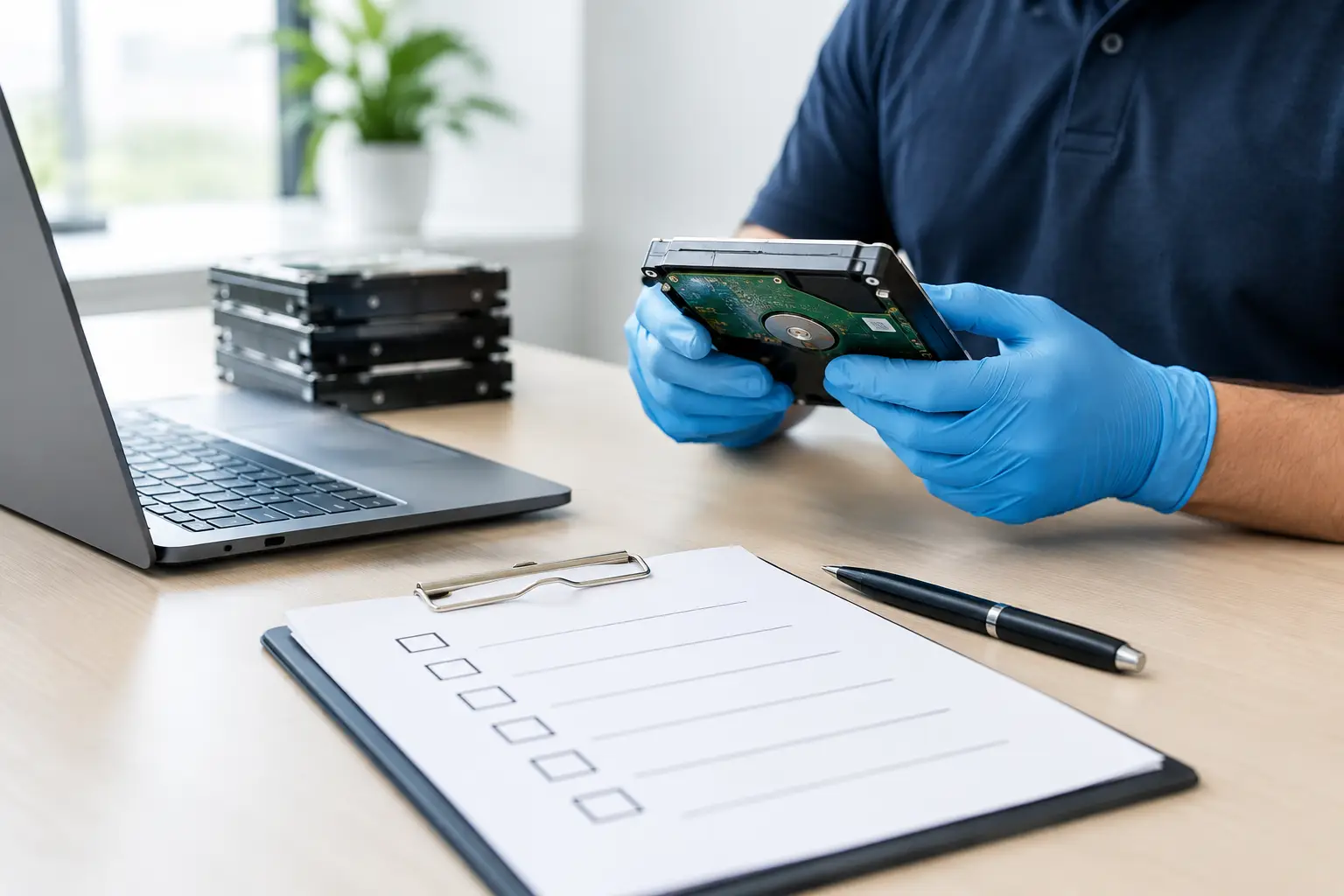
First, identify what you have. Separate desktops, laptops, servers, external drives, and loose internal drives. Confirm whether each unit contains an HDD or SSD if possible. If you are dealing with business assets, match them to an internal list so nothing goes missing between storage, pickup, and processing.
Next, decide what needs to be retained. Some devices may still hold records that have to be archived before disposal. Others may contain software licenses, encryption keys, or user data you still need to transfer. Destruction should happen after that review, not before it.
Then choose the right path for each device. Reusable and healthy drives may be wiped. Failed or high-risk drives should be physically destroyed. Mixed batches are normal. A good process does not force every item into the same treatment just to save time.
Why chain of custody matters
The biggest weak point in disposal is often not the destruction method. It is the handoff.
If old drives sit in an open office, get loaded into an unmarked vehicle, or disappear into a generic scrap stream, you lose visibility fast. That is where many businesses become uncomfortable, and rightly so. Even households want to know where devices went and whether someone handled them properly.
A documented collection process helps close that gap. Pickup records, item verification, and a clear path to wiping or destruction make disposal easier to trust. This is where a service provider with IT handling experience offers something very different from a random junk buyer. The value is not just removing the equipment. It is reducing uncertainty.
For organizations, documentation can also support internal sign-off. Office managers and admin teams often need to show that equipment was collected, tracked, and processed in a responsible way. That paper trail matters when devices once held sensitive business information.
A practical hard drive destruction guide for homes and small businesses
If you are disposing of one or two personal devices, start by asking whether the drive works and whether you want the machine reused. If yes, secure wiping may be enough. If no, destroy the drive and send the remaining electronics through a responsible recycling channel.
If you are clearing office equipment, avoid one-off decisions at desk level. Create a simple sorting rule. Working devices with resale or redeployment value get verified wiping. Failed drives, storage removed from servers, and anything with highly sensitive data gets physical destruction. Keep a device list, and do not let equipment leave without a record.
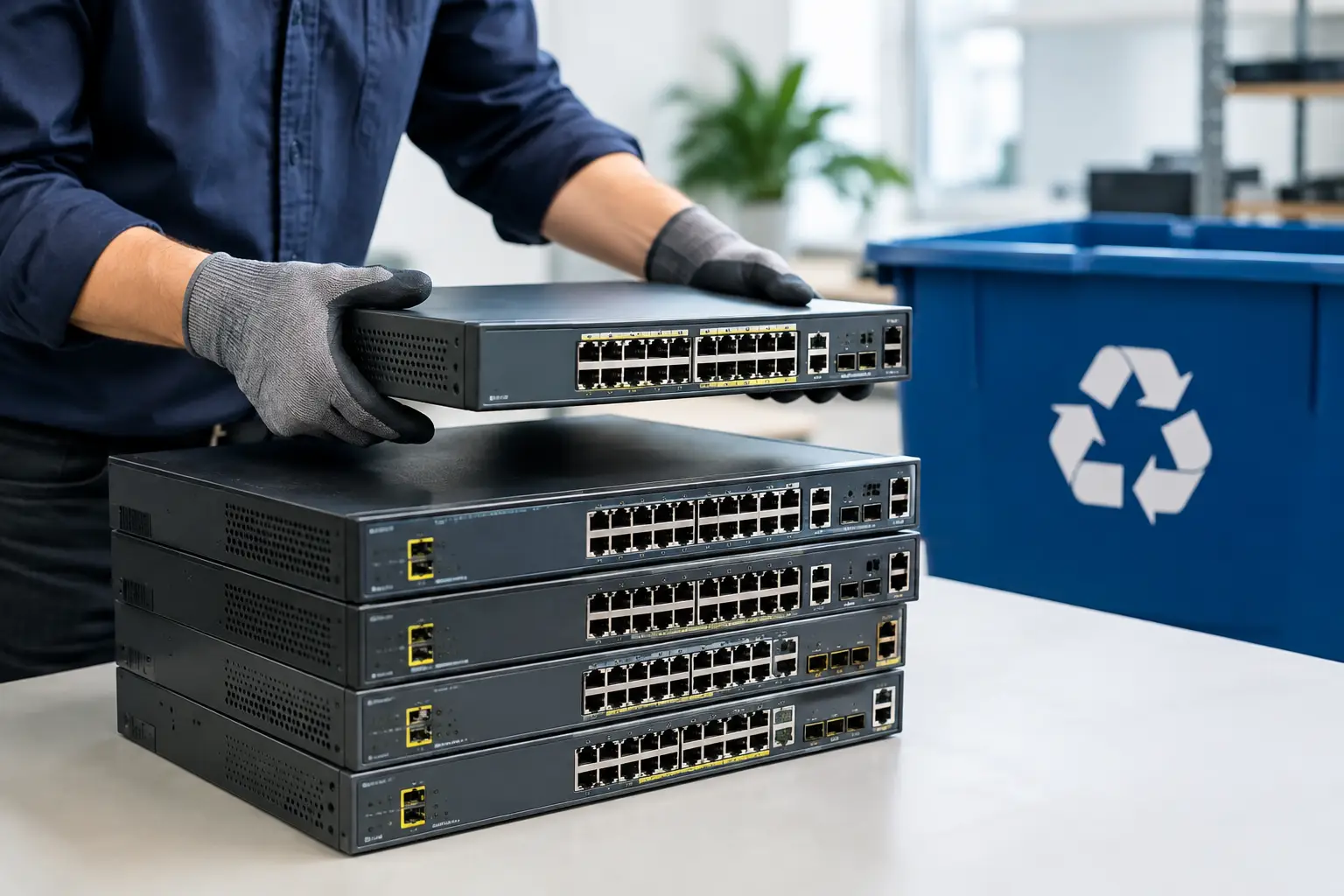
For both groups, avoid mixing storage devices into general e-waste bins without knowing how data will be handled. Recycling and data security should work together, not separately. At MYPC2U, that is exactly why pickup, secure handling, and documented processing are treated as part of the same service conversation.
Common mistakes to avoid
One common mistake is assuming age equals safety. An old drive is not a safe drive. In many cases, it is just a forgotten one with years of recoverable data still inside.
Another is choosing the most dramatic method instead of the right one. Smashing a laptop with a hammer may feel decisive, but if the storage chip on an SSD remains mostly intact, the result may be less secure than a managed destruction process.
The last mistake is treating disposal as an afterthought. By the time equipment is piled in a corner, labels are missing, and nobody knows what is inside, the process becomes harder to control. A little planning upfront usually makes disposal safer, faster, and less stressful.
Old drives do not need to become a security problem waiting in storage. With the right method, a clear chain of custody, and responsible recycling after the data is dealt with, you can let them go with a lot more confidence.




Leave a Reply