

A retired company tablet can still hold more than an old email account. It may contain customer contacts, staff messages, saved passwords, mobile-device-management profiles, cloud access tokens, photos, and documents downloaded by a previous user. Knowing how to retire company tablets properly protects that information while clearing valuable space from your office.
For a small or mid-sized business, tablet retirement is not simply a matter of placing devices in an e-waste box. A reliable process confirms what you have, removes each device from active use, handles data appropriately, and creates a record of where the equipment went. That is especially useful when tablets were shared across teams, issued to field staff, or used at point-of-sale counters.
Start With a Clear Tablet Inventory
Before anyone resets a device, make a simple inventory. Record the manufacturer, model, serial number, asset tag, assigned user or department, and current condition. Include whether the tablet powers on and whether it has visible damage.
This step can feel administrative, but it prevents common problems. A tablet may still be assigned to a former employee, listed in an insurance record, or needed for a software license check. An inventory also helps distinguish working tablets that could be reused from damaged or obsolete units that should move straight to responsible recycling.
For larger batches, assign one person to oversee the handover. That person does not need to be an IT specialist, but they should know which devices are included and keep the inventory with the disposal records.
Check Whether Tablets Can Be Reused First
Not every older tablet is ready for recycling. If a device still receives security updates, works reliably, and meets your operational needs, it may be useful as a visitor sign-in screen, meeting-room controller, inventory scanner, or training device. Reuse can extend the value of equipment you have already purchased.
However, reuse is only sensible when the device can be secured and supported. A slow tablet that no longer receives updates may create more risk and frustration than value. Consider its battery health, operating system support, repair cost, and compatibility with the apps your business uses.
If tablets are being donated or transferred to staff, the same data-removal standards apply. The next owner should receive a clean device, not one that still has access to company accounts.
Remove Company Access Before Wiping
The most important part of how to retire company tablets is separating the device from your business systems before it leaves your control. A factory reset is useful, but it should not be the first or only action.
Begin by removing the tablet from your mobile device management platform, if one is in use. This releases the device from company enrollment and lets you confirm it is no longer subject to your policies. For Apple devices, remove the tablet from the organization’s management and account controls. For Android devices, remove work profiles and enterprise enrollment according to your management platform’s instructions.
Next, sign out of business applications and revoke active sessions where possible. Review email, cloud storage, messaging, password managers, VPN tools, payment apps, and any line-of-business software. Change passwords or revoke tokens if there is any doubt about who had access to the device.
Also remove the tablet from the former employee’s account, where applicable. Activation locks and account locks can prevent a recycler or new owner from testing or processing the device. More importantly, leaving a device tied to an employee account creates an avoidable privacy and access issue.
Back Up What the Business Needs
A tablet reset cannot be undone. Before erasing a device, confirm that necessary files, photos, app data, and records are already stored in approved business systems.
This is particularly relevant for tablets used by sales teams, site supervisors, delivery staff, or technicians. They may contain job photos, signed forms, customer notes, or locally saved files that never made it to the cloud. Ask the department owner to review the device before it is approved for retirement.
Avoid copying everything “just in case” onto an unprotected USB drive or personal computer. Any backup should go to an approved location with the access controls your business already uses.
Erase Each Device and Verify the Result
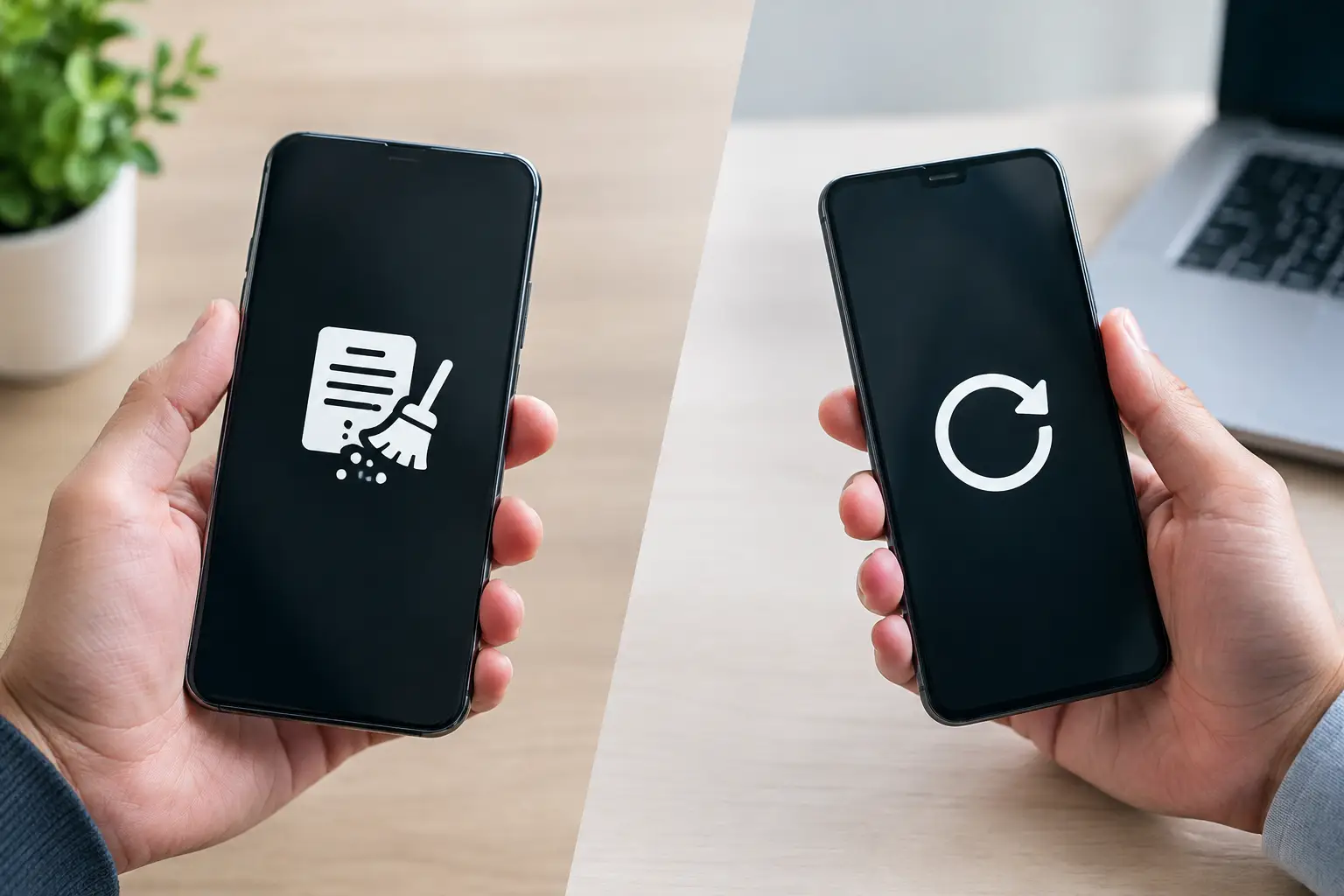
Once access has been removed and required data has been backed up, erase the tablet using the manufacturer’s supported reset process. Modern devices typically encrypt stored data, so a properly completed erase can remove encryption keys and make previous content inaccessible. This depends on the device model, operating system, and whether encryption was enabled, which is why business devices should have encryption and screen-lock policies in place long before retirement.
After the reset, restart the tablet. It should display the initial setup screen, not an employee profile, company home screen, or active app session. Check that no account lock remains and that any removable SIM card or memory card has been removed. Treat those cards as separate assets because they can contain contacts, messages, or files.
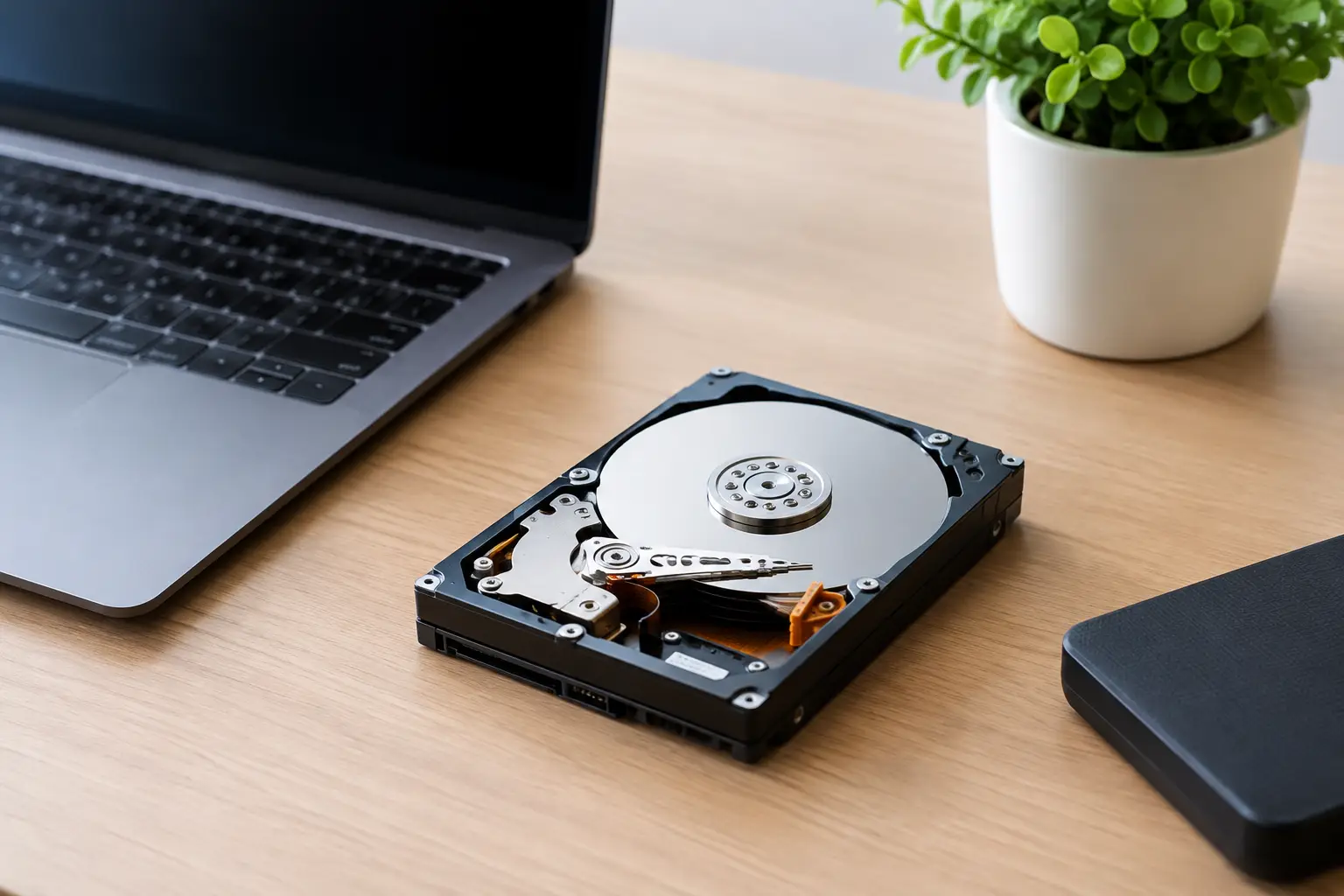
For devices that will not turn on, are severely damaged, or cannot be reset, do not assume the data is gone. Set them aside for secure handling. A professional IT asset disposal provider can assess the device and arrange appropriate data wiping or physical drive destruction support when wiping is not possible.
Keep Documentation for Your Records
Tablet retirement becomes much easier to manage when the paperwork matches the physical handover. Keep your inventory, the date devices were removed from service, the person responsible for approval, and any wiping or disposal records together.
Documentation matters for several reasons. It gives your business an internal audit trail, helps resolve questions about missing assets, and demonstrates that retired equipment was handled through an accountable process. If tablets contained customer, employee, financial, or operational data, those records are part of good information governance.
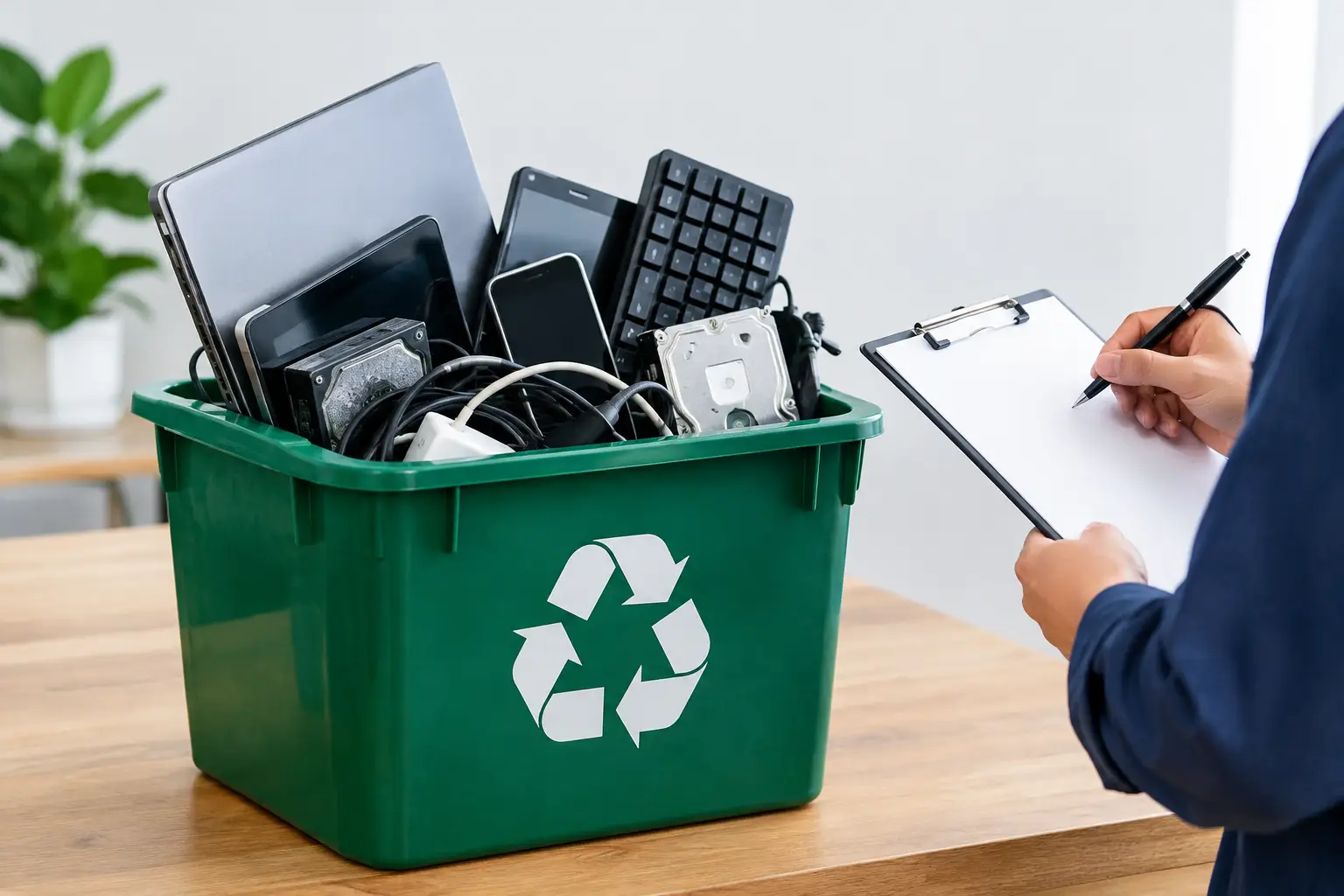
At pickup, ask for clear proof of collection that identifies the date and the equipment handed over. For business batches, asset verification against your list is worthwhile, particularly when several departments have contributed devices. The goal is not to create unnecessary paperwork. It is to avoid a situation where no one can confirm what left the office or how it was handled.
Choose a Recycler That Understands IT Assets
Generic scrap collection may seem convenient, but tablets are not ordinary waste. They contain batteries, circuit boards, glass, and potentially sensitive data. The lowest-effort option can leave your business with no evidence of collection, no clarity about downstream processing, and no confidence that data-bearing equipment was handled carefully.
Look for a provider that can collect tablets from your premises, verify the assets being picked up, explain its data-handling process, and coordinate responsible recycling with licensed downstream partners. For devices that still hold accessible data, ask specifically whether secure data wiping is available and what records can be provided.
MYPC2U supports businesses in Kuala Lumpur and Selangor with scheduled e-waste pickup, documented collection, and IT-aware handling for tablets and other retired equipment. This is useful when an office has a mixed batch of tablets, laptops, phones, network hardware, and peripherals that need to be removed together.
Create a Repeatable Retirement Policy
The easiest way to reduce risk is to avoid treating every retirement as a one-off event. Build a short internal checklist that covers inventory, manager approval, backup confirmation, account removal, erasure verification, pickup documentation, and record storage. Review it whenever devices are reassigned, lost, or retired.
The exact process depends on your tablet fleet. A handful of shared tablets may need only a simple record and secure pickup. A business with managed devices across several sites may need IT approval, chain-of-custody controls, and formal asset reconciliation. What should not change is the principle: a tablet is not fully retired until its business access, data, and physical disposal have all been addressed.
A little care at the end of a device’s working life can prevent a difficult data-security question later. Set aside retired tablets in a locked area, keep them out of general waste, and arrange collection when your batch is ready.

Leave a Reply