
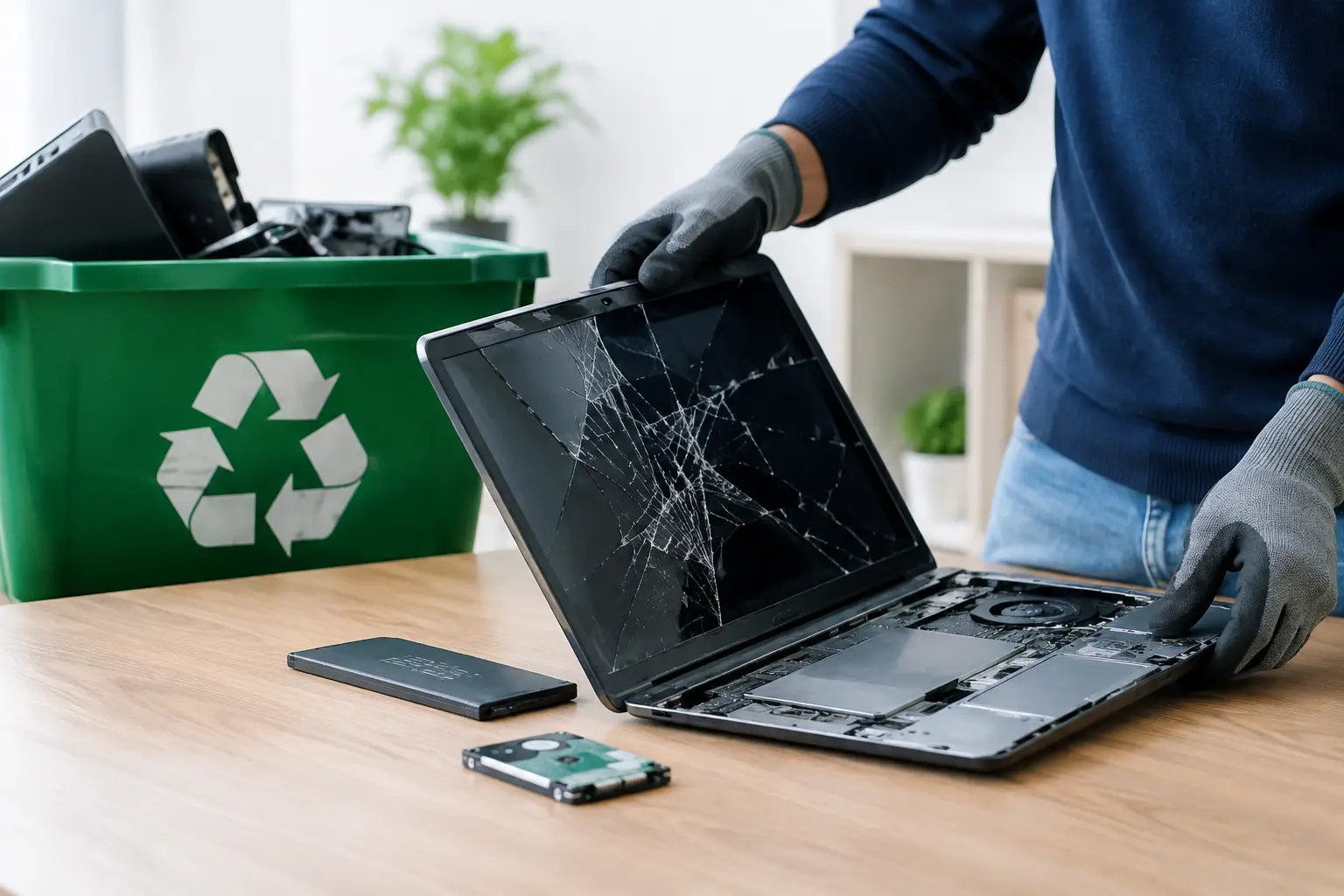
A laptop can stop working long before the information on it disappears. A cracked screen, failed battery, water damage, or a motherboard fault may make the device unusable, but its drive can still hold passwords, photos, customer records, financial files, and saved browser data. That is why knowing how to recycle broken laptops starts with protecting the data inside, not simply finding someone willing to take the machine away.
For households, the concern is usually personal privacy. For businesses, the stakes can include client confidentiality, employee information, and internal records. A responsible recycling process handles both the physical device and the information it once stored.
Do Not Put a Broken Laptop in the Trash
Laptops contain materials that should not enter regular waste streams, including lithium-ion batteries, circuit boards, metals, and small amounts of potentially hazardous components. Throwing one into a household bin creates a fire risk if the battery is damaged, and it sends reusable materials to landfill.
A broken laptop may also have value for responsible downstream processing. Metals, plastics, and components can be separated and recovered by licensed recyclers. Even when a laptop cannot be repaired or reused, proper recycling helps keep those materials in circulation and reduces the risk of unsafe disposal.
The key difference is accountability. An informal collector may remove the equipment quickly, but may not explain how it will be handled, where it will go, or what happens to the data. For devices that once held sensitive information, that uncertainty is rarely worth the convenience.
Step 1: Check Whether the Laptop Can Be Reused
Before recycling, consider whether the laptop is truly beyond use. A device with a broken keyboard, damaged display, or worn battery may still be repairable. If the laptop powers on, a technician can assess whether replacing one part would give it a useful second life.
This is not always the best route. Older laptops may be too slow for current software, unsupported by security updates, or more expensive to repair than replace. Water damage and motherboard failures can also make repair unreliable. In those cases, recycling is the more practical choice.
For business equipment, it helps to separate devices into clear groups: working units suitable for redeployment, repairable units, and end-of-life assets. This makes pickup and asset verification more organized, especially when several laptops are being retired at once.
Step 2: Protect Your Data Before Recycling
A laptop that will not switch on can still contain recoverable data. Do not assume a dead screen or failed charging port has erased anything. The storage drive may be fully intact.
If the laptop works, back up files you want to keep before disposal. Transfer documents, photos, browser bookmarks, and other important files to a new device or secure storage. Then sign out of accounts, remove the laptop from trusted-device lists where appropriate, and disable device-tracking features.
After that, the drive should be securely wiped. A normal file deletion or factory reset may not be enough, particularly for business devices. Deleted files can sometimes be recovered if data remains on the drive. Professional data wiping uses a defined process to overwrite data and reduce the chance of recovery.
For devices that cannot be powered on, data wiping may require removing and accessing the drive separately. Some laptops use removable hard disk drives or solid-state drives, while others have storage soldered directly to the motherboard. The right handling method depends on the device and its condition.
A professional IT asset disposal provider can assess the laptop, arrange secure wiping where possible, and support hard drive destruction when appropriate. For organizations, ask for documentation of the collection and data-handling process. This creates a useful record for internal controls and audit purposes.
Step 3: Remove Accessories and Separate What You Need
Before handing over a laptop, remove personal items that may have been left behind. Check the laptop sleeve, ports, optical drive if present, and any memory-card slots. Take out USB receivers, SD cards, SIM cards, dongles, and external storage devices.
Keep the charger only if you still need it for another compatible device. Otherwise, include it with the recycling collection. Chargers, docking stations, external keyboards, mice, and monitors are electronic items too, and a pickup provider can often collect them along with the laptop.
For a company clear-out, label assets before collection if you need to match them to an internal register. A simple list with the make, model, serial number, and asset tag can save time later. It also helps confirm that the equipment collected matches the equipment released for disposal.
How to Recycle Broken Laptops Through a Responsible Provider
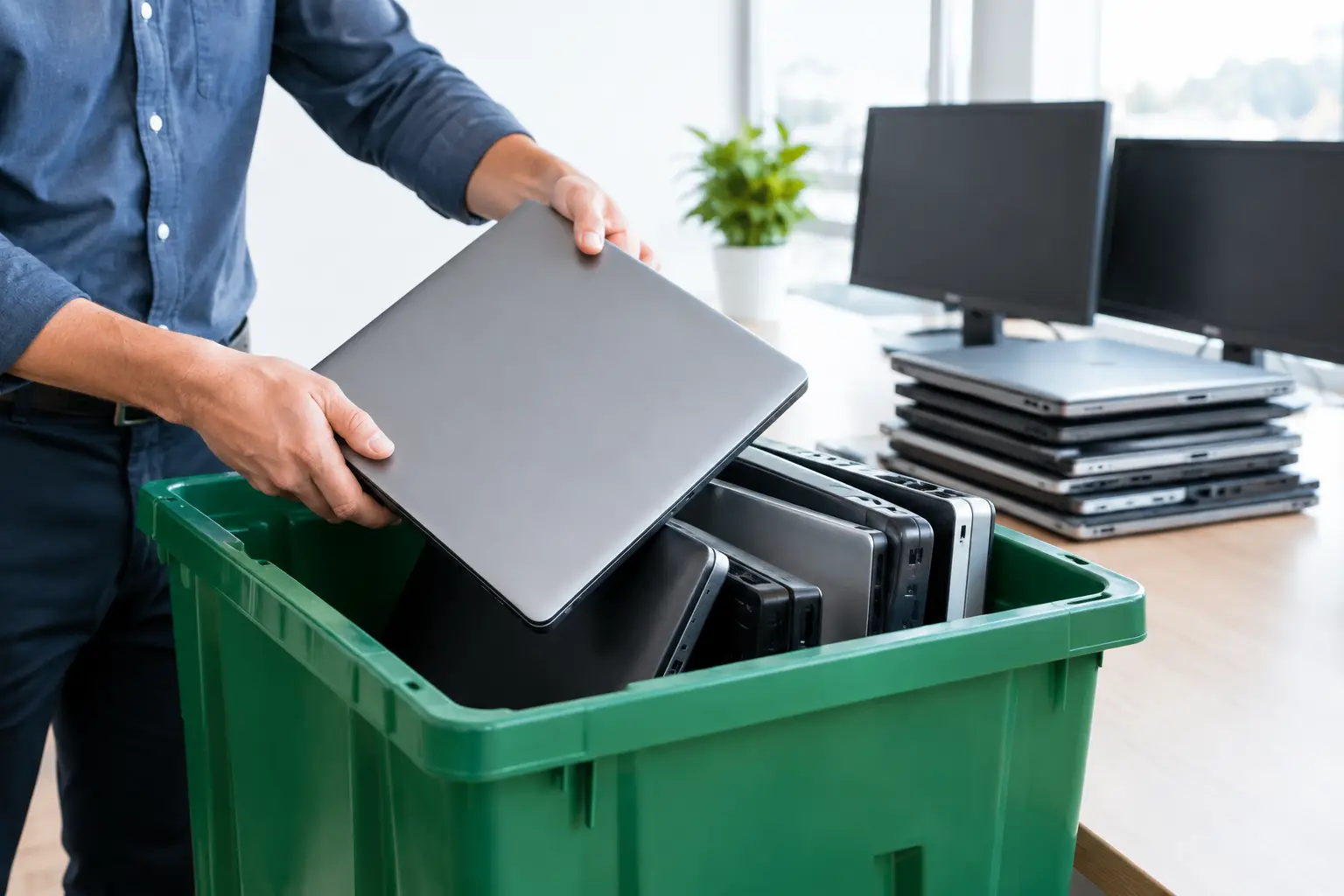
The easiest route is usually a scheduled e-waste pickup. Instead of transporting bulky or damaged equipment across town, you arrange collection from your home, office, or storage location. This is especially useful for businesses with multiple laptops, desktop computers, servers, networking hardware, or office electronics waiting to be cleared.
When selecting a provider, look beyond the promise of free collection. Ask practical questions: Will the equipment be handled as e-waste rather than mixed scrap? Is secure data wiping available? Can the provider support drive destruction for sensitive devices? Will you receive proof that the items were collected?
A dependable provider should be clear about what happens next. Equipment should be sorted for reuse, component recovery, or recycling through appropriate downstream channels. Your collection record should identify the date and the equipment category, and businesses may also need asset verification details for their files.
MYPC2U provides pickup-based e-waste recycling for households and businesses in Kuala Lumpur and Selangor, with IT-aware handling for laptops and other unwanted electronic equipment. That means customers do not have to choose between convenient removal and responsible data protection.
What to Do With a Swollen or Damaged Battery
Treat a swollen laptop battery as a safety issue. Signs include a bulging case, a raised trackpad, a keyboard that no longer sits flat, unusual heat, or a chemical smell. Do not keep charging or using the laptop, and do not try to puncture, crush, or force the battery out.
Place the device on a non-flammable surface away from direct sunlight, children, pets, and combustible materials. If it is safe to do so, power it down and arrange a proper collection promptly. Tell the recycling provider that the battery is swollen or damaged so it can be handled with the necessary care.
A battery that appears normal still requires proper recycling. Lithium-ion batteries can cause fires when crushed in garbage trucks or sorting facilities, which is one more reason laptops should never be discarded with regular trash.
Common Mistakes to Avoid
The most common mistake is giving away or recycling a laptop without considering the drive. Even a device that seems completely broken can expose personal or business data if its storage is not properly addressed.
Another mistake is removing the hard drive and then leaving it in a drawer indefinitely. Keeping the drive may feel safer, but it creates a new storage and security problem. If you do not intend to reuse it, arrange secure wiping or appropriate destruction through a qualified provider.
Businesses should also avoid sending old IT equipment out in small, undocumented batches. One forgotten laptop can be enough to create a data-handling gap. Coordinating a pickup, confirming the asset list, and retaining collection records is usually simpler than trying to trace equipment later.
Finally, do not rely on a recycler solely because they offer the fastest collection. Speed matters, but clear handling procedures, data security options, and documented pickup matter more when the devices contain information that should not leave your control without a trace.
A Better Way to Clear Out Old Laptops
Broken laptops do not need to become a storage-room problem or a privacy risk. Set aside the devices, identify any that contain sensitive information, and arrange secure collection with a provider that understands IT equipment. A clear handoff, documented pickup, and responsible processing let you make space without wondering where your old laptops – or their data – ended up.

Leave a Reply