
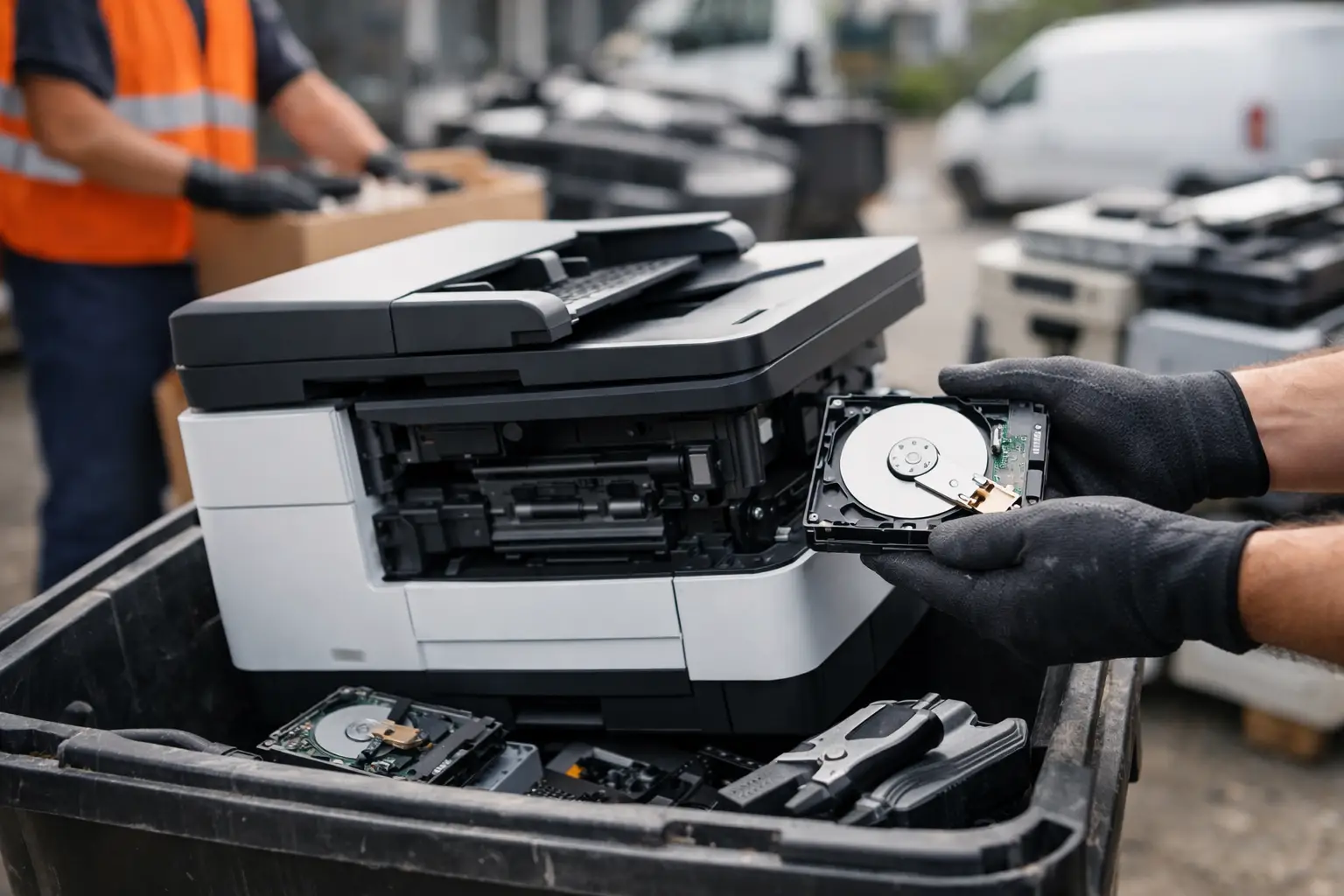
A retired office printer can hold far more than old print jobs. Many multifunction printers retain scanned documents, copied IDs, payroll records, email addresses, network credentials, and user account details on an internal drive. Knowing how to dispose printers with hard drives properly means treating the printer as an IT asset, not just a bulky piece of office equipment.
For a household, the risk may be old tax forms or medical paperwork. For a business, it may include customer data, employee records, contracts, invoices, or confidential scan folders. The safest path is to identify the storage device, choose a verifiable data-clearing method, and send the equipment through a responsible electronics recycling process.
Why Printers With Hard Drives Need Special Handling
Printers with storage are most common in multifunction copiers, department printers, production printers, and larger laser devices. These machines may contain a traditional hard disk drive, solid-state drive, internal flash memory, or a removable storage module. Even smaller printers can save settings, Wi-Fi credentials, fax logs, address books, and recent job information.
The issue is that deleting a job from the print queue does not necessarily remove it from the device. A multifunction printer may keep copies of scanned or printed files on its drive so it can process jobs, store documents temporarily, or support features such as secure print and scan-to-folder.
That is why placing an old printer at the curb, handing it to an informal scrap collector, or donating it without checking the storage can create an avoidable data exposure. The printer may be broken, but its drive can still be readable.
Step 1: Find Out Whether the Printer Has Internal Storage
Start with the model number and the printer’s documentation. Look for terms such as “hard disk,” “HDD,” “SSD,” “storage,” “job storage,” “document box,” or “encrypted hard drive.” The settings menu may also show installed storage under device information, administrator settings, or security settings.
Larger copier-style machines often have a side panel or rear access area where the drive is installed. Some units use an optional hard drive, so two printers from the same product line may not have identical storage configurations.
If you manage office equipment, create a basic asset record before disposal. Record the make, model, serial number, department, and whether a drive or other storage was found. This is especially useful when several devices are being replaced at once and helps prevent a printer from leaving the premises without being checked.
Step 2: Remove Sensitive Paper and Reset User Settings
Before arranging disposal, collect any loose paper from trays, output areas, and document feeders. Check for forgotten originals in the scanner feeder. It is a simple step, but sensitive documents are often left behind during office clear-outs.
Next, use the printer’s administrator menu to remove saved user profiles, address books, scan destinations, stored forms, cloud accounts, and Wi-Fi settings. A factory reset is worthwhile, but it should not be your only data-protection measure. On many devices, a reset clears the interface and configuration while leaving recoverable information on the internal storage.
If the printer uses removable ink or toner cartridges with smart chips, handle them according to the manufacturer’s guidance. Those chips usually do not hold complete documents, but they can retain usage or device information.
Step 3: Choose Data Wiping or Physical Destruction
The right disposal method depends on the device, the type of data involved, and whether the printer will be reused.
When secure data wiping makes sense
Secure wiping is appropriate when the printer and its storage device are still functional and the equipment may be refurbished, redeployed, donated, or resold. A proper wipe overwrites stored data using a defined process, rather than merely deleting files.
For organizations that need a documented approach, a professional IT asset disposal provider can perform and record the wiping process. MYPC2U supports secure data wiping, including DoD 5220.22-M 3-pass wiping where appropriate, along with documented handling for collected IT equipment.
Wiping has a practical advantage: it can allow usable equipment to stay in service rather than becoming waste. However, it depends on the drive being accessible and operational. A failed, encrypted, or damaged drive may not be suitable for a verified software wipe.
When physical destruction is the better choice
Physical destruction is often the safer option for failed drives, highly sensitive information, or equipment that will not be reused. The hard drive should be removed and destroyed through a controlled process, such as shredding or crushing by a qualified provider.
Do not rely on drilling a single hole, smashing the drive with a hammer, or removing only an external circuit board. These methods can be inconsistent, create safety hazards, and may leave recoverable data behind. For business records, physical destruction should be documented so you can show how the storage media was handled.
It also helps to separate the decision about the drive from the decision about the printer. A printer can be recycled after the drive is removed or sanitized. The storage device may need a different, more secure destruction route.
Step 4: Keep a Clear Chain of Custody
For businesses, printer disposal should have the same basic controls as laptop or server disposal. The goal is to know where the device was, who handled it, and what happened to its data-bearing components.
Use a scheduled pickup where equipment can be collected directly from your office, home, storage room, or reception area. At pickup, confirm the number of printers and any removed hard drives, then retain a collection record. If your organization has privacy, financial, health, or contractual obligations, ask for documentation of the data wiping or drive destruction as well.
For a larger office refresh, label each printer with an internal asset tag or serial number before collection. This avoids confusion when several similar devices are leaving at the same time. It also gives the office manager or IT team a straightforward reconciliation list after pickup.
Step 5: Recycle the Printer Through the Right Channel
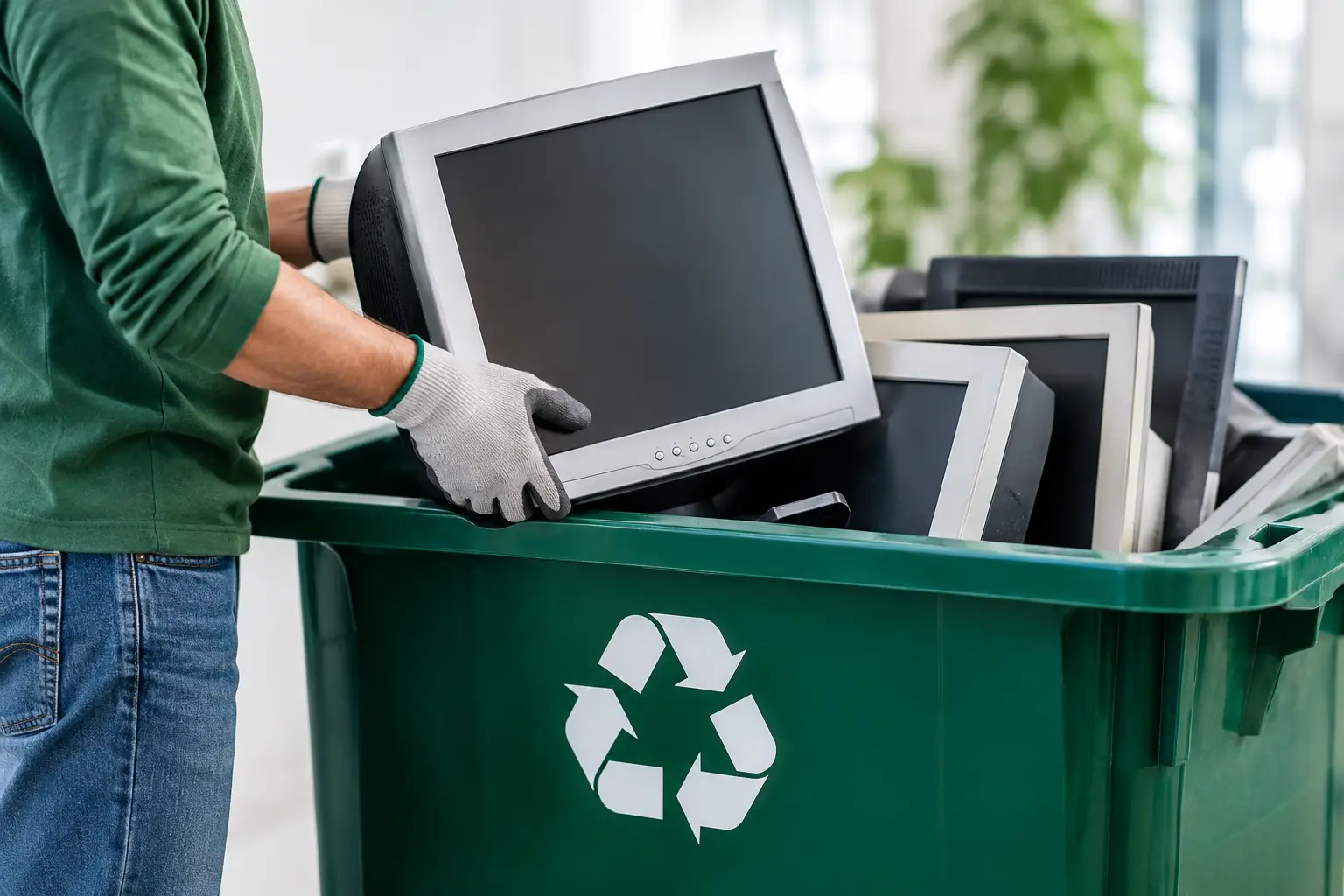
Printers contain mixed materials, including plastics, circuit boards, metal, glass, toner residue, and power components. They should not go into household trash or a standard recycling bin. Responsible e-waste processing separates recoverable materials and routes components through appropriate downstream recycling channels.
A pickup-based e-waste service is particularly helpful for heavy multifunction printers, copiers, or a batch of outdated office devices. It eliminates the need for employees to transport awkward equipment and reduces the chance that a printer is left unsecured in a loading area, dumpster, or hallway while waiting for disposal.
If the printer is in working condition, ask whether reuse is realistic after data sanitization. Reuse can be a good outcome, but only when the device is still reliable and the storage has been properly cleared. Older models with expensive consumables, outdated connectivity, or recurring faults may be better suited for material recycling.
Common Printer Disposal Mistakes to Avoid
The most common mistake is assuming that a factory reset removes everything. It may clear settings, but it does not always sanitize the drive. Another is treating a printer as harmless because it no longer powers on. A nonworking printer can still contain an intact hard drive.
Avoid leaving printers outside for a curbside collection, giving them away without checking stored data, or allowing an unknown collector to take them without a record. For businesses, avoid asking staff to remove drives unless they are trained and authorized. Printer housings can be heavy, awkward, and more complicated than they appear.
Also remember that data may exist beyond the hard drive. Saved contacts, fax logs, scan-to-email settings, USB storage, and embedded flash memory can all require attention. If you are unsure what storage a model contains, treat it as though it may hold sensitive information until it has been assessed.
A Safer Way to Clear Out Old Printers
Disposing of a printer with internal storage is not difficult, but it should be deliberate. Confirm the device type, remove paper and user settings, sanitize or destroy the storage, and keep a record of collection and processing. That small amount of planning protects personal information, business records, and the people responsible for handling them.
When an old printer is ready to leave your space, the best next step is simple: keep it secure until a qualified e-waste and IT asset disposal provider can collect it and handle it responsibly.




Leave a Reply