
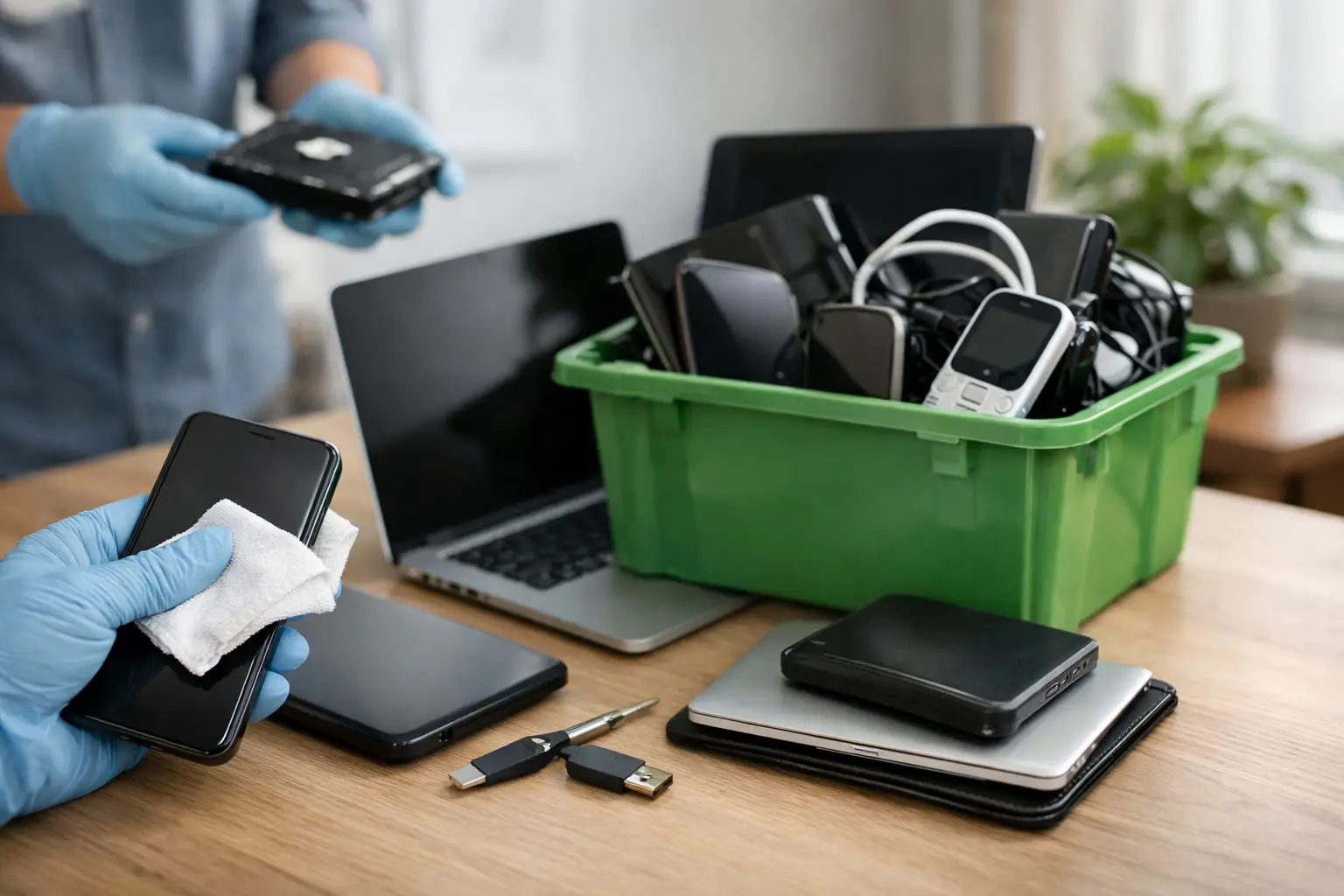
A retired laptop can still hold years of tax files, saved passwords, customer records, and family photos. An old office server may contain far more sensitive information than anyone remembers. That is why knowing how to prepare devices for recycling is about more than clearing space. It is the first step in protecting your data and making sure equipment can be handled responsibly.
Whether you are clearing out a home office or replacing computers across a business, a little preparation makes collection safer, faster, and easier to document. The process does not need to be technical, but it should be deliberate.
How to Prepare Devices for Recycling Before Pickup
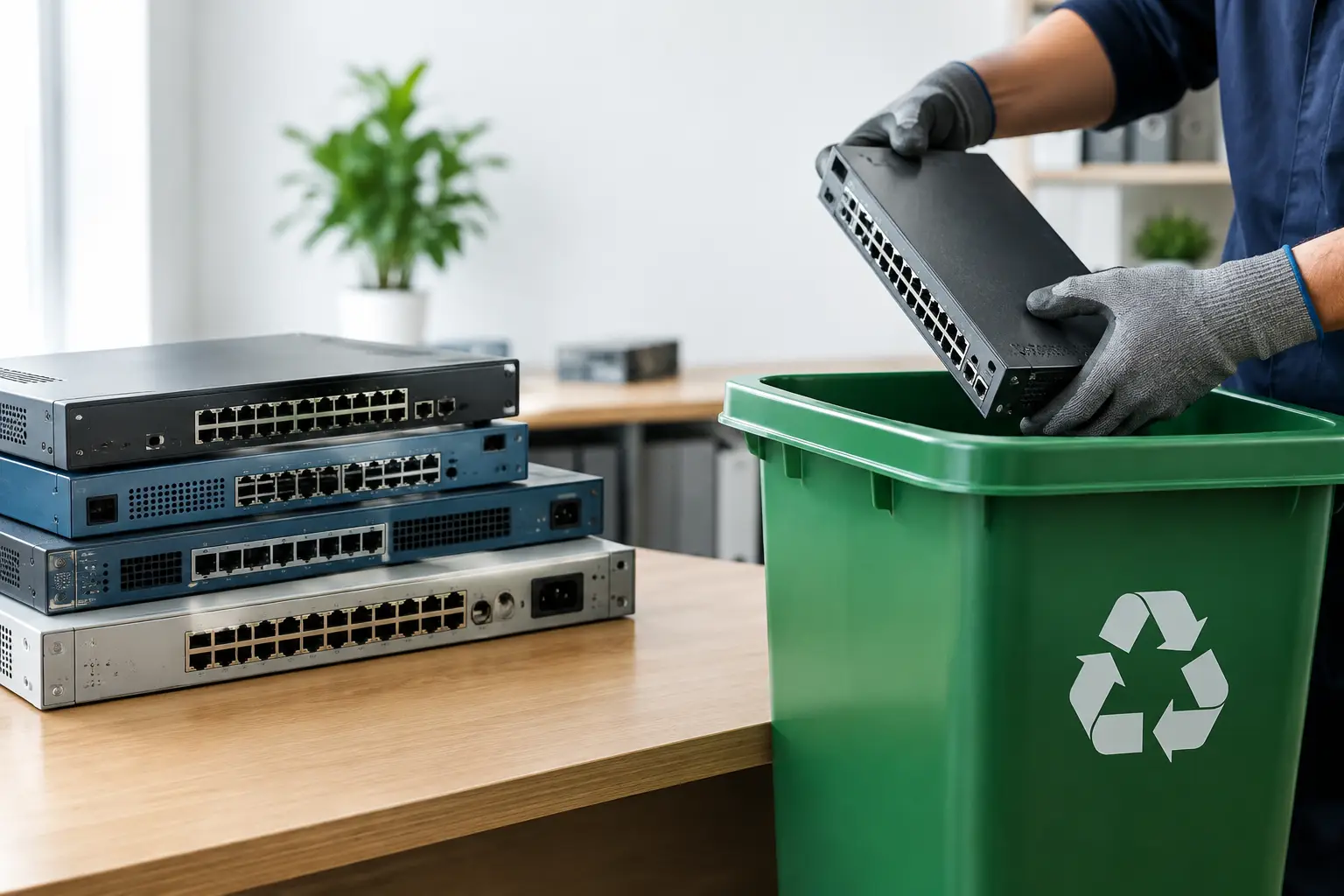
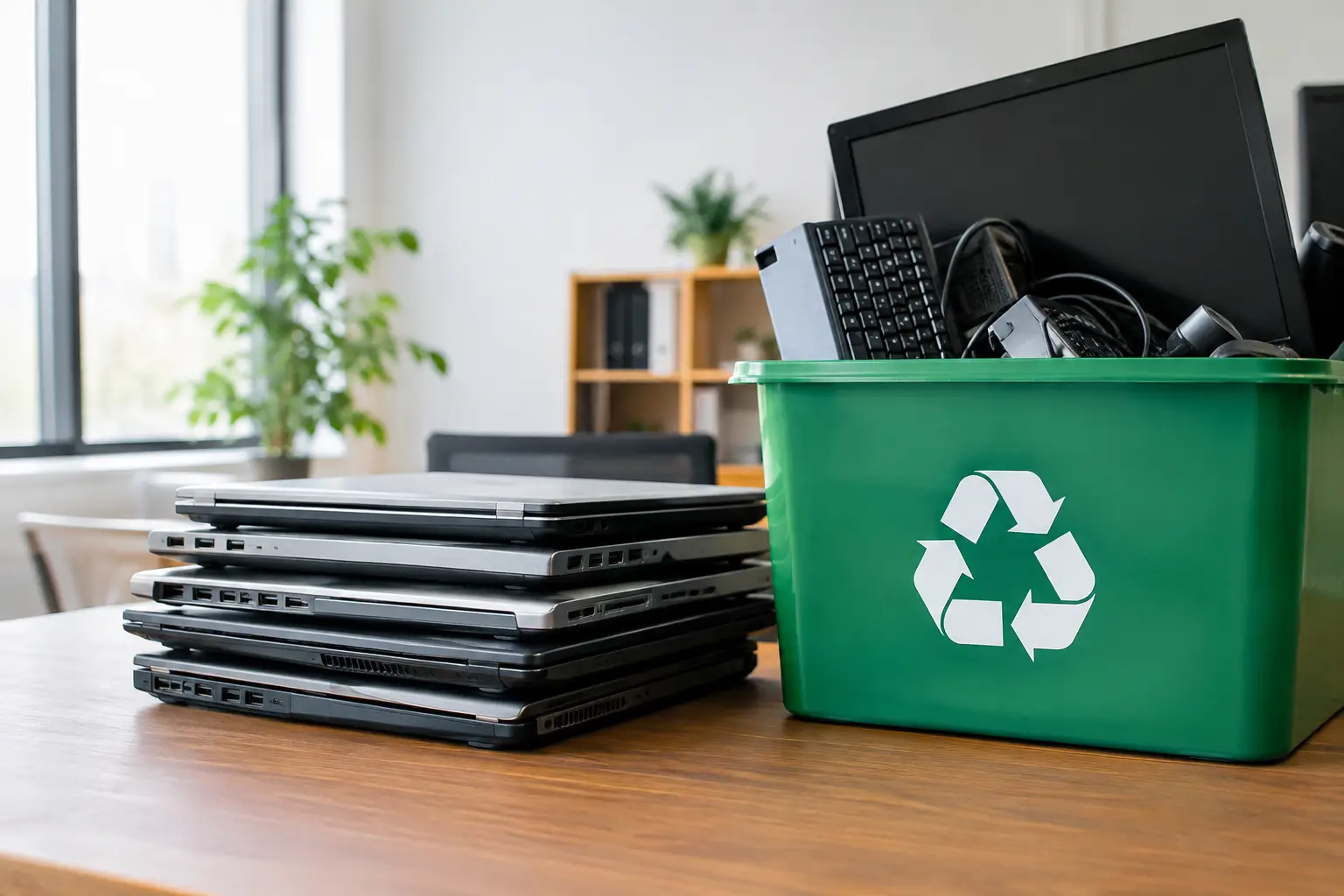
Start by deciding what is leaving your home or workplace. It is easy to focus on desktops and laptops while overlooking monitors, phones, routers, external drives, printers, cables, power supplies, keyboards, and network equipment. Keeping similar items together helps the pickup team assess the collection and reduces the chance that a small device is left behind.
For businesses, assign one person to coordinate the disposal. That person does not need to be an IT specialist, but they should know which items are approved for release and which devices may require additional review. A simple inventory can be useful, especially for laptops, servers, external storage, and company phones. Record the device type, brand, serial number or asset tag if available, and whether it has a storage drive.
This record is not just administrative housekeeping. It helps your business confirm what was collected and supports a more accountable IT asset disposal process. For a household, a short note with the number of devices and any special concerns is usually enough.
Secure Your Data Before Devices Leave Your Control
Data protection should come before recycling. Deleting files, emptying the recycle bin, or resetting a device without checking the storage situation may not fully remove recoverable information. This matters for personal photos and financial files, but the risk is greater for businesses holding employee information, customer data, contracts, credentials, or internal documents.
Back up what you still need
Before wiping or resetting anything, confirm that important files have been moved to a current computer, approved cloud storage, or another secure backup location. Check the obvious folders, but also review desktop files, downloads, email archives, browser bookmarks, accounting software, and project folders.
For business equipment, make sure the device is no longer needed for record retention, ongoing work, or a software license transfer. A rushed disposal decision can create an avoidable problem when someone later needs a file or application key from the old machine.
Sign out and remove account access
Sign out of email, cloud storage, browsers, messaging apps, and device-management tools. Remove the device from trusted-device lists where applicable, particularly for phones, tablets, and laptops that use multi-factor authentication. If a device was used for banking, payroll, customer systems, or remote access, revoke saved sessions and update passwords when there is any uncertainty.
On phones and tablets, disable activation locks and remove the device from the associated Apple, Google, Samsung, or business management account. A factory reset is useful, but it should be completed only after you have backed up needed data and removed account protections correctly. Otherwise, the next handler may be unable to access the device for legitimate processing.
Choose the right data removal method
The right approach depends on the device and the sensitivity of its contents. Some devices can be securely wiped and reused or recycled. Others, especially failed hard drives or damaged equipment that cannot be powered on, may need physical hard drive destruction.
Businesses should not assume that a standard reset meets their internal obligations. Ask the recycling provider how data-bearing devices are handled, whether secure wiping is available, and what records can be provided. MYPC2U supports secure data wiping using a DoD 5220.22-M 3-pass process and can coordinate hard drive destruction support when wiping is not appropriate.
If you plan to remove a drive yourself, label it clearly and keep it separate from the equipment. Do not leave loose drives in an unmarked box where they can be mistaken for ordinary accessories.
Do Not Forget Removable Media and Accessories
Old technology often has storage in places people do not expect. Check laptops and desktops for removable hard drives, USB flash drives, memory cards, CDs, DVDs, SIM cards, and external backup drives. Printers and multifunction office machines may store documents or address books in internal memory. Network-attached storage units, routers, firewalls, and servers can also retain configuration files, login details, and logs.
Remove paper from printers and shred anything containing personal or business information. Check scanner beds, document feeders, and storage trays. For phones, remove SIM cards if they are still installed. You may want to keep the card if it holds contacts or if your carrier requires it for account purposes.
Cables, chargers, docking stations, keyboards, mice, and adapters can usually be included with electronic equipment when requested by the collector. However, do not spend hours trying to match every charger to every device. Grouping loose accessories in a separate, labeled box is often more practical.
Pack Devices So They Arrive Safely
Good packing protects both the equipment and the people handling it. You do not need original packaging. Use sturdy boxes for smaller electronics and place heavier items at the bottom. Wrap fragile screens, tablets, and laptops with available protective material, such as clean cardboard, paper padding, or bubble wrap. Avoid overfilling boxes to the point that they cannot be lifted safely.
Desktop computers, monitors, printers, and servers are often best left accessible rather than boxed. Clear a path from the devices to the pickup point, especially in offices with stairs, tight hallways, or restricted loading areas. If an item is unusually heavy, such as a rack server, large copier, or UPS unit, mention it when scheduling collection so the right handling can be planned.
Keep equipment dry and away from outdoor areas while waiting for pickup. Moisture can make equipment harder to handle and may create safety issues with damaged electronics.
Treat batteries with extra care
Batteries need special attention. Do not place swollen, leaking, hot, or visibly damaged batteries in a closed box with other electronics. Keep them away from flammable materials and let the recycling provider know about their condition before collection. Tape exposed terminals on loose batteries where safe to do so, and store them in a non-metal container until they can be handled properly.
Do not try to open a battery pack, puncture it, or force it out of a device. This is one area where caution matters more than speed.
Prepare the Pickup Location and Your Records
A professional recycling pickup should be clear from start to finish. Before the scheduled time, confirm where the equipment is located, who will provide access, and whether building management requires visitor registration, elevator booking, or loading-dock approval. For businesses, notify reception or security so the collection does not cause delays.
Set aside devices that are not part of the collection. In a busy office, it is surprisingly easy for an active monitor, printer, or laptop to be moved by mistake. A simple label such as Recycle or Keep can prevent confusion. For larger projects, place approved equipment in one designated collection area.
After pickup, retain the collection record with your asset inventory or disposal file. This is particularly helpful for organizations that need to demonstrate responsible handling of retired IT equipment. The level of documentation needed depends on your business, industry, and internal policies, but clear records are always easier to maintain when they are created at the time of collection.
A Better Way to Let Go of Old Tech
Preparing electronics for recycling is not about making every device look perfect. It is about separating what you need to keep, protecting the information you cannot afford to expose, and giving the collection team a safe, organized handoff. If you are unsure whether a device has data storage, assume that it might and ask before it leaves your control.
A few careful checks now can turn a pile of outdated equipment into a documented, responsible disposal task – and let you move forward without wondering what happened to your data.




Leave a Reply