

An old laptop in a closet can hold far more than outdated files. Saved passwords, tax records, customer details, email archives, browser history, and Wi-Fi credentials can remain on a device long after it stops being useful. This secure data wiping guide explains what should happen before a computer, phone, server, or storage drive leaves your home or workplace.
Deleting files or emptying the Recycle Bin is not enough. Those actions remove convenient access to data, but they may not remove the data itself. A responsible disposal process protects your information first, then ensures the equipment is handled through appropriate recycling channels.
What Secure Data Wiping Actually Means
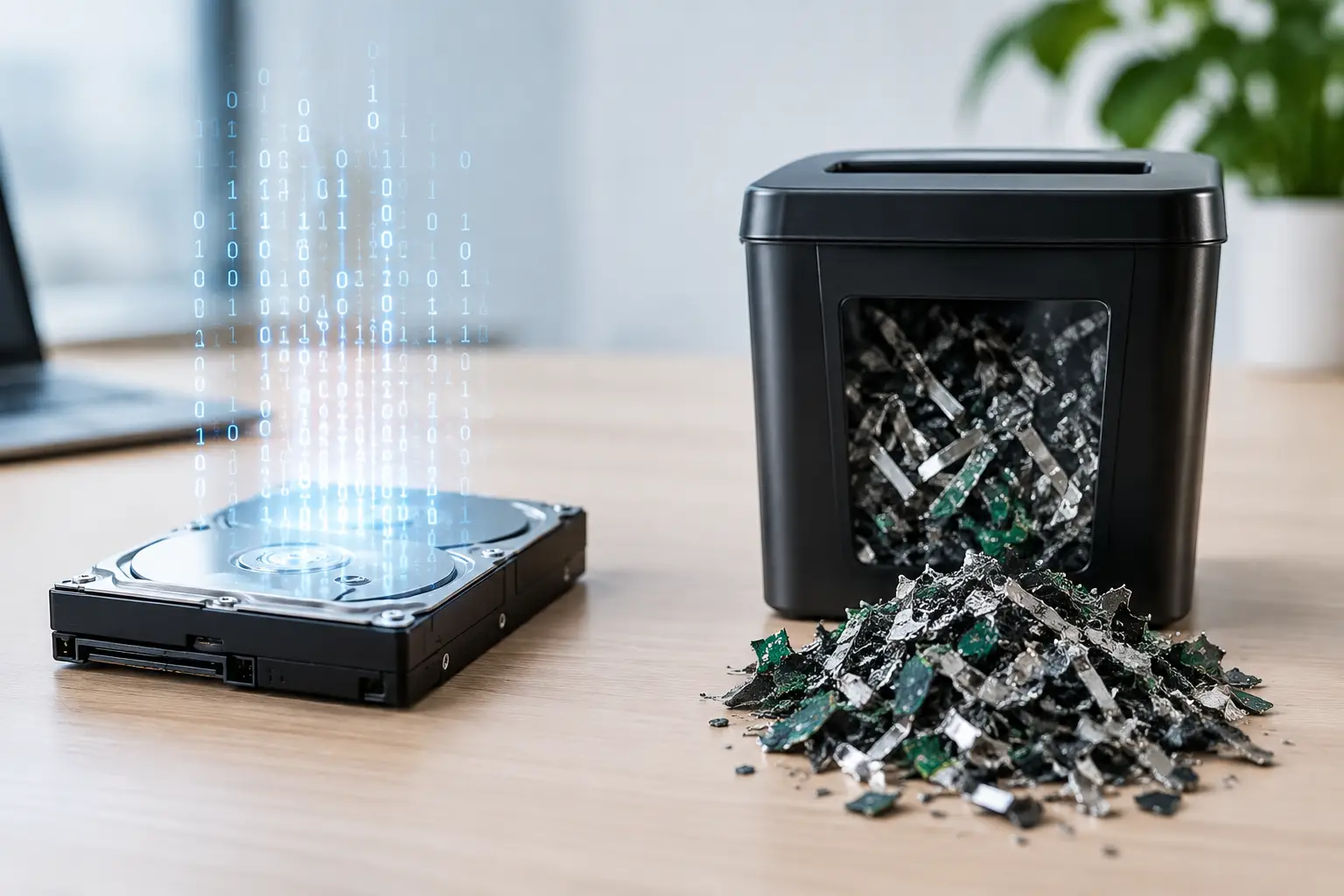
Secure data wiping is the process of permanently removing information from a storage device so it cannot be recovered through normal data recovery tools. Depending on the device and storage type, this can involve overwriting data, using built-in secure erase functions, encryption key removal, or physically destroying the storage media.
The right method depends on what you are disposing of. Traditional hard disk drives, solid-state drives, smartphones, servers, and removable media do not all respond to the same approach. This is why a quick factory reset or a simple file deletion should not be treated as a universal solution.
For business equipment, the goal is also accountability. If an old office computer contains employee records, quotations, client files, or financial documents, your disposal process should show that the device was collected, handled, and prepared for recycling with care.
Why Deleting Files Is Not a Secure Method
When you delete a file, the operating system usually marks its storage space as available for future use. Until new information overwrites that space, portions of the deleted file may remain recoverable. The same issue can apply when a drive is formatted using a quick format option.
A factory reset can be useful for preparing a phone or personal computer, especially when encryption is enabled. But it is not always enough for devices that held sensitive business information or for equipment with damaged, outdated, or unknown storage media.
There is another practical concern: old equipment often has more storage than people realize. A desktop may contain a second hard drive. A server may have multiple drives in a RAID array. A printer, copier, or network appliance may retain job history, address books, scans, or configuration data. A proper check looks beyond the main computer drive.
Start With an Inventory Before Equipment Leaves
For a household, an inventory can be as simple as listing the devices you plan to dispose of and checking each one for removable storage. For a business, it should be more structured. Record the asset type, make and model, serial number where available, and whether it contains a hard drive, SSD, or other storage media.
This step helps prevent devices from being missed during an office clear-out. It also gives your team a clear record of what was handed over for collection. For businesses, documented pickup and asset verification are especially helpful when several computers, monitors, phones, network devices, or servers are being retired at once.
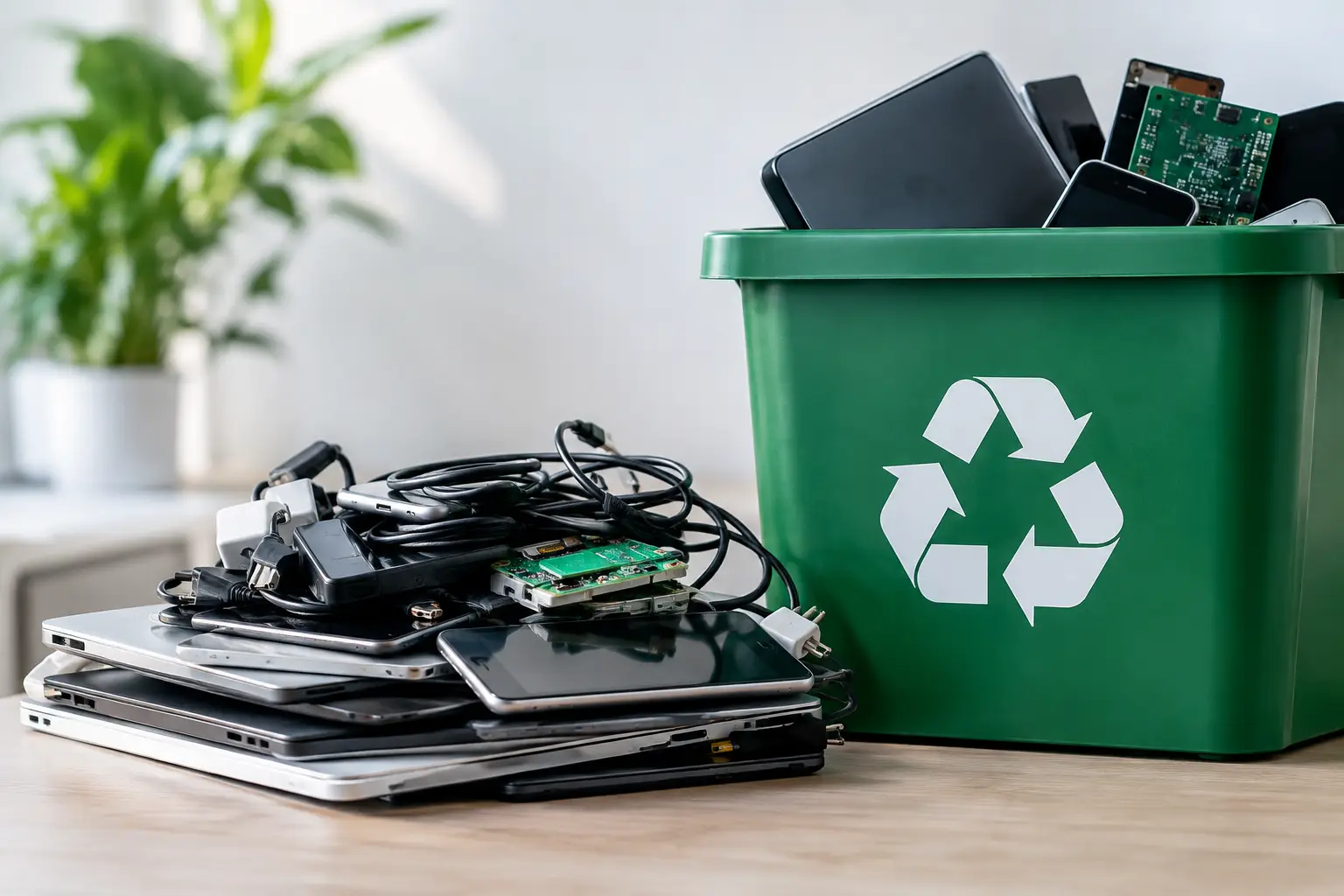
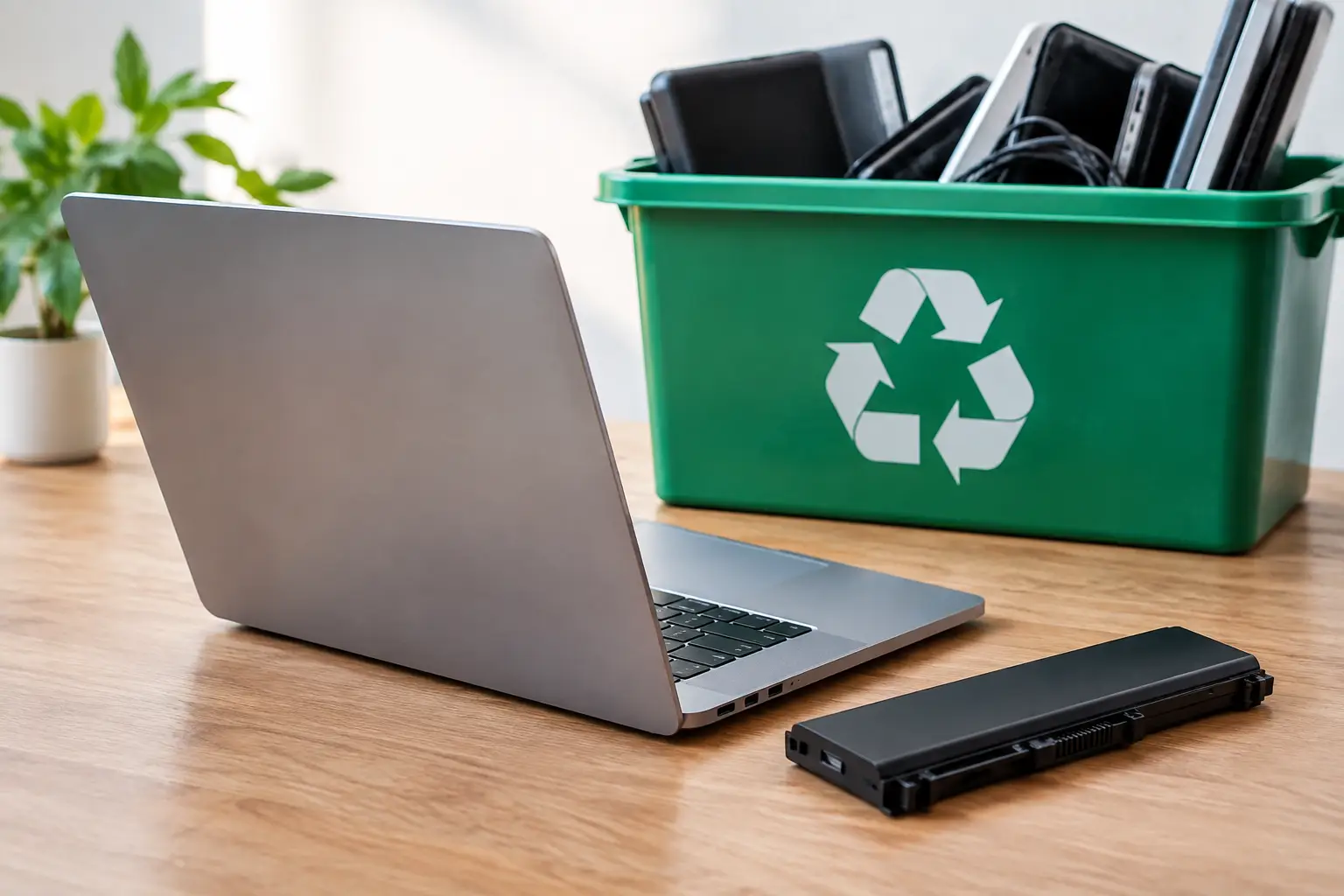
Before collection, separate devices that need data handling from items that do not. Monitors, keyboards, cables, and empty computer cases may not contain data, while laptops, desktops, mobile phones, USB drives, external drives, NAS units, servers, copiers, and some routers may store sensitive information.
Back Up What You Need First
Wiping is permanent. Before any secure erase or destruction process begins, make sure you have transferred the files you need. For households, that may include photos, personal documents, saved contacts, and software license information. For a business, it may include shared folders, accounting records, project files, user data, or archived emails subject to retention requirements.
Do not assume that everything has already been backed up because it is stored in the cloud. Some files may exist only on a local desktop, a disconnected laptop, or an external drive. It is worth opening key folders and confirming that the backup is complete before the device is released.
Once you verify the backup, sign out of accounts where possible. Remove devices from account dashboards, deactivate software licenses as needed, and turn off services that could remain tied to the old hardware. For phones and tablets, remove SIM cards and disable activation locks before disposal.
Choose the Right Wiping Method for the Storage Type
Hard disk drives
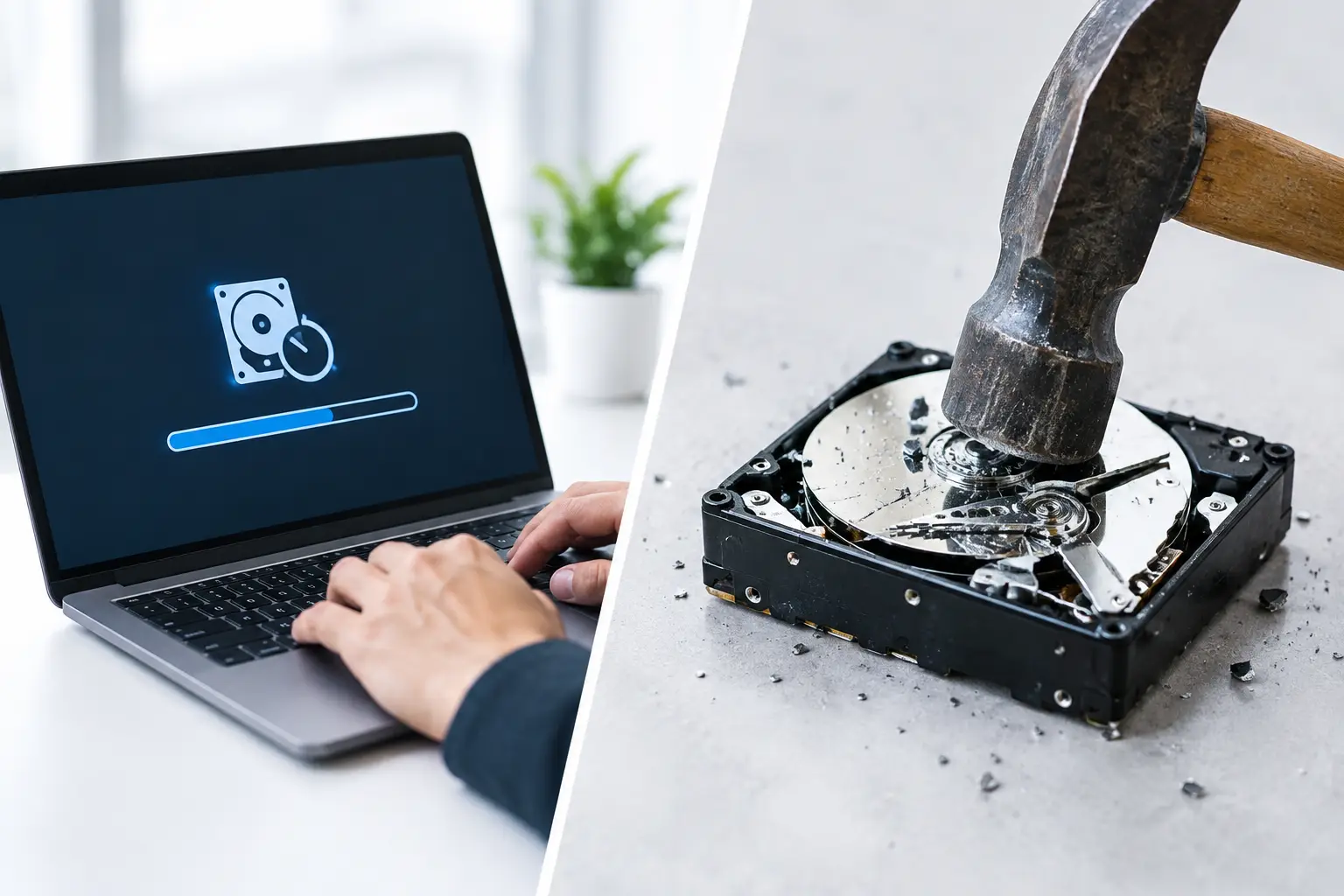
For conventional HDDs, secure overwriting can be an effective method when the drive is working properly. A multiple-pass process writes data over the drive to reduce the chance of recovery. MYPC2U supports DoD 5220.22-M 3-pass data wiping for suitable hard disk drives, providing a practical option for customers who need their equipment prepared for responsible recycling.
A drive must be functional for software-based wiping to work. If it cannot power on, has failed mechanically, or cannot be reliably accessed, physical destruction may be the more appropriate option.
Solid-state drives
SSDs need extra care because they manage data differently from traditional hard drives. Their wear-leveling and overprovisioning features mean conventional overwriting may not reach every physical area in the same way. Manufacturer secure erase tools, cryptographic erase on encrypted drives, or physical destruction can be more suitable depending on the drive condition and security requirement.
For highly sensitive business data, discuss the type of drive with your disposal provider rather than treating every storage device the same.
Phones, tablets, and modern laptops
Modern phones and many newer laptops use device encryption. If encryption is active, a proper factory reset that removes the encryption keys can provide strong protection. Still, you should first sign out of accounts, remove personal profiles, and confirm activation locks are disabled. A locked device may be difficult to reuse or recycle responsibly.
Servers and network equipment
Servers can hold data across multiple disks, including failed drives that were removed and stored separately. Network-attached storage devices, firewalls, and multifunction printers can also retain credentials, logs, scans, or configuration files. These assets deserve an IT-aware review before pickup, not a quick clear-out at the end of an office move.
When Physical Destruction Makes More Sense
Data wiping preserves the possibility of reuse when equipment remains functional. That is often a worthwhile outcome because reuse can extend the useful life of a device. However, reuse is not always the priority.
Physical destruction may be the better choice when a drive has failed, cannot be wiped successfully, contains highly confidential information, or must meet a specific internal policy. HDD destruction support gives businesses an option for storage media that cannot safely be processed through software wiping alone.
The trade-off is straightforward: destruction provides finality, while successful wiping may allow the device or drive to be recovered for reuse. Your decision should reflect the sensitivity of the data, the working condition of the asset, and your organization’s recordkeeping requirements.
Keep a Clear Chain of Custody
Security does not stop once a device is wiped. Equipment can still be misplaced if collection and transport are informal. For offices, avoid leaving retired laptops or servers in an open loading area, reception space, or shared storeroom while waiting for disposal.
Use a scheduled collection process and hand equipment directly to the pickup team. A documented pickup record helps establish when the assets left your control. For businesses, this supports internal IT asset management and gives office managers a clearer answer if questions arise later about what happened to retired equipment.
It is also wise to identify one person who can authorize the release of IT assets. This reduces confusion when several departments are clearing equipment at the same time.
Common Mistakes to Avoid
The most common mistake is assuming that a device is harmless because it is old or no longer turns on. Older machines may contain years of records, and nonworking equipment can still have readable storage media.
Another mistake is forgetting peripherals with internal memory. Check external hard drives, USB sticks, memory cards, old phones, printers, copiers, and network storage devices. Businesses should also account for spare drives kept in drawers or removed from retired servers.
Finally, avoid passing devices to an unknown collector without asking how data-bearing equipment is handled. Convenience matters, but it should not come at the expense of data protection or responsible downstream recycling.
Prepare for Pickup With Confidence
A secure disposal process does not need to be complicated, but it should be deliberate. Identify your data-bearing devices, back up what you need, remove account access, select an appropriate wiping or destruction method, and keep a record of collection.
For households, these steps protect personal information while making space at home. For businesses, they help turn a potentially risky equipment refresh into an organized, documented IT asset disposal process. When old electronics are ready to go, choose handling that treats your data with the same care you did when it was still in use.

Leave a Reply